

Connect Google Ads
To gain deeper insights into your advertising performance and create even more powerful product segments, Magelon Feeds also allows you to connect your Google Ads account. This integration provides access to key campaign metrics such as clicks, impressions, cost, conversions, and CPC, enabling you to build data-driven segments and optimize your product feed based on real advertising performance.
To connect your Google Ads account you need to select the merchant you want from the dashboard and then click on the Edit Account on the left side menu.
Next navigate to the Google Services tab. Click to Google Analytics option.
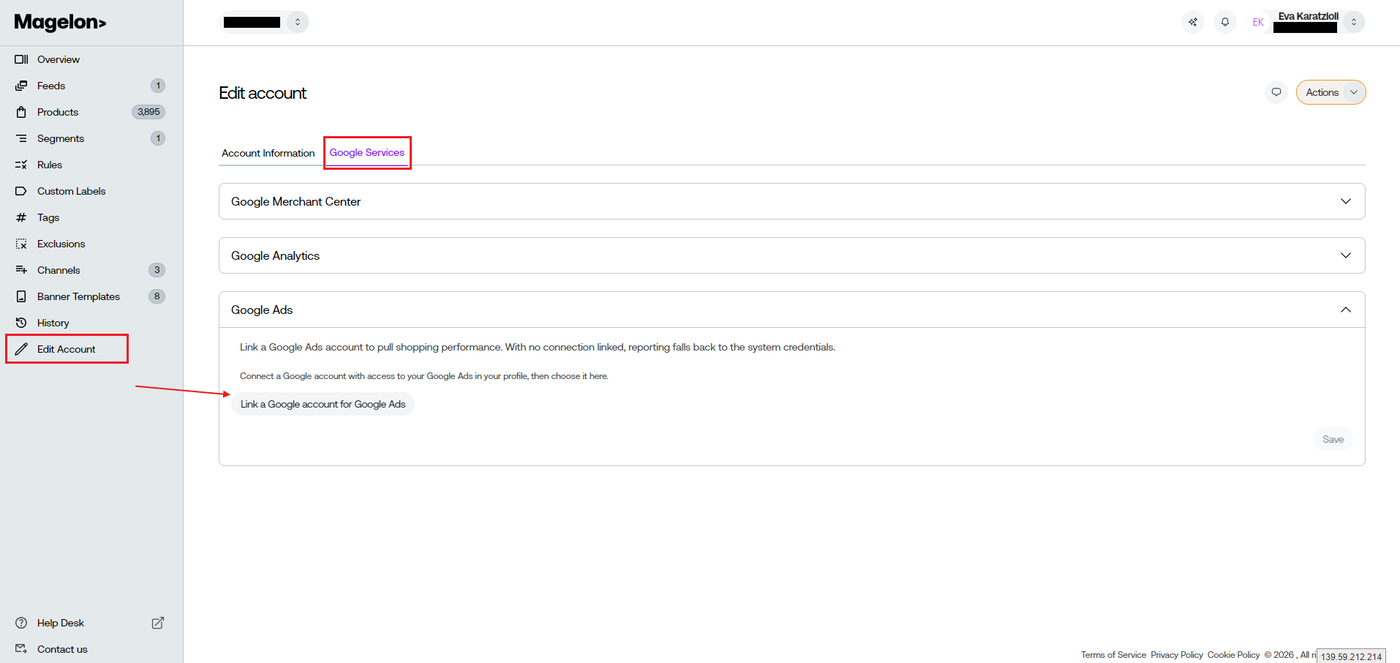
Click on button labeled “Link a Google account for Google Ads”, and you will be redirected on your profile settings where you can connect Google Analytics through Google Sign in.
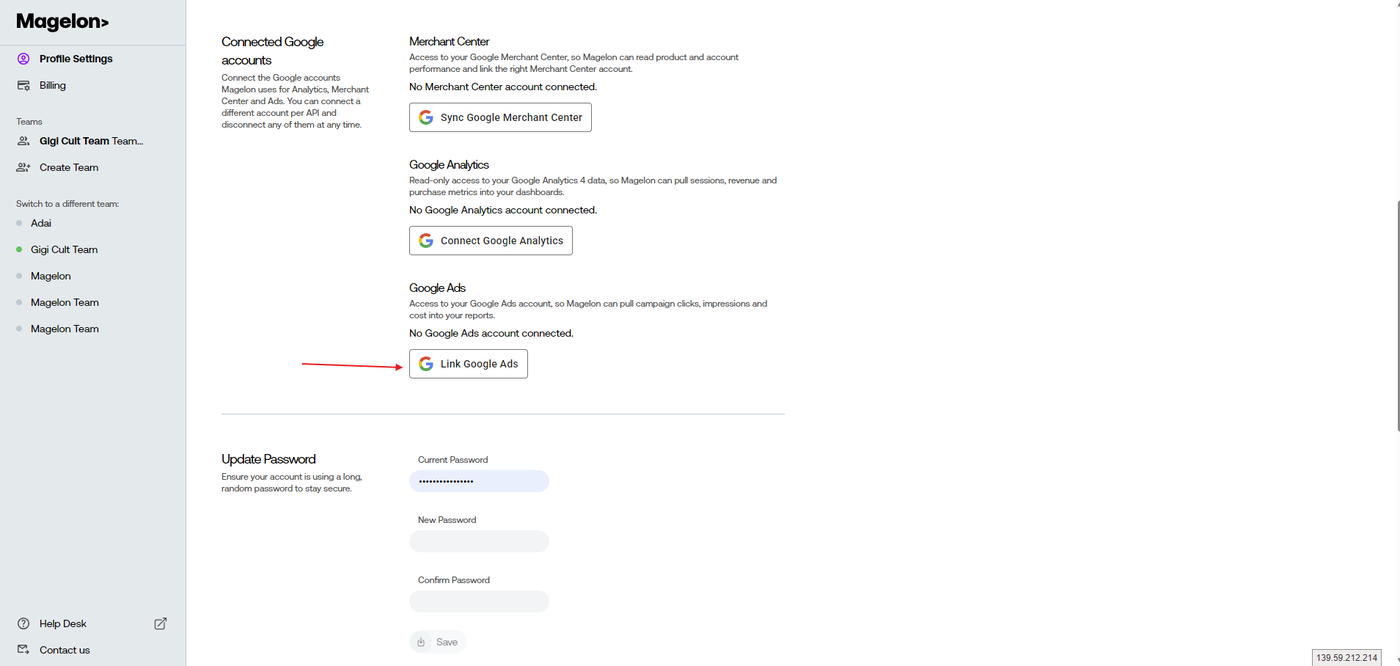
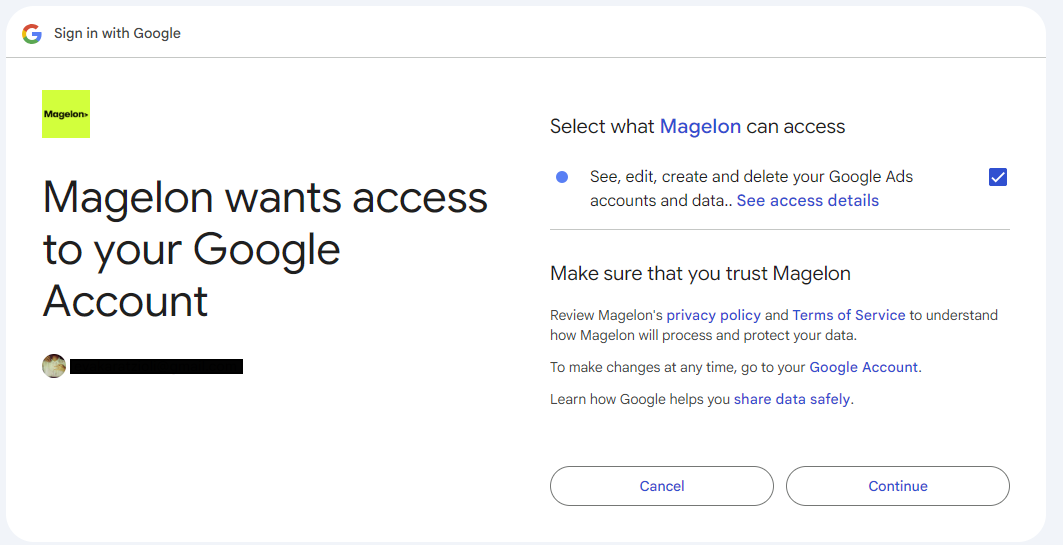
Click on the Link Google Ads button to start the process. Sign in with the Google account that already has access to the merchant's Google Ads. After signing in, you need to grant Magelon access to your Google Ads data. To do this, make sure the checkbox "See, edit, create and delete your Google Ads accounts and data.” is selected, as shown in the image below. Then, click Continue to proceed.
After establishing a successful connection with your Google Ads account go back to the merchant and click Edit Account → Google Services → Google Ads.
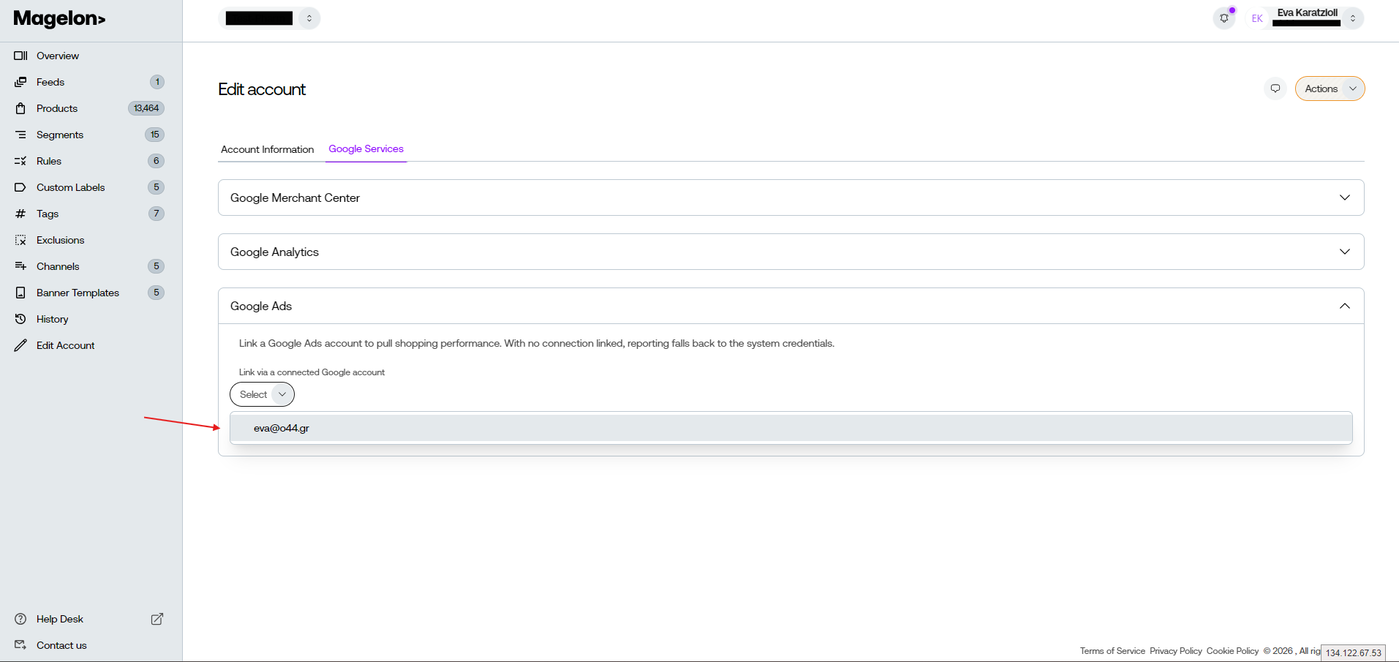
Select your Google account and then select the Google Ads account you want from the drop down menu.
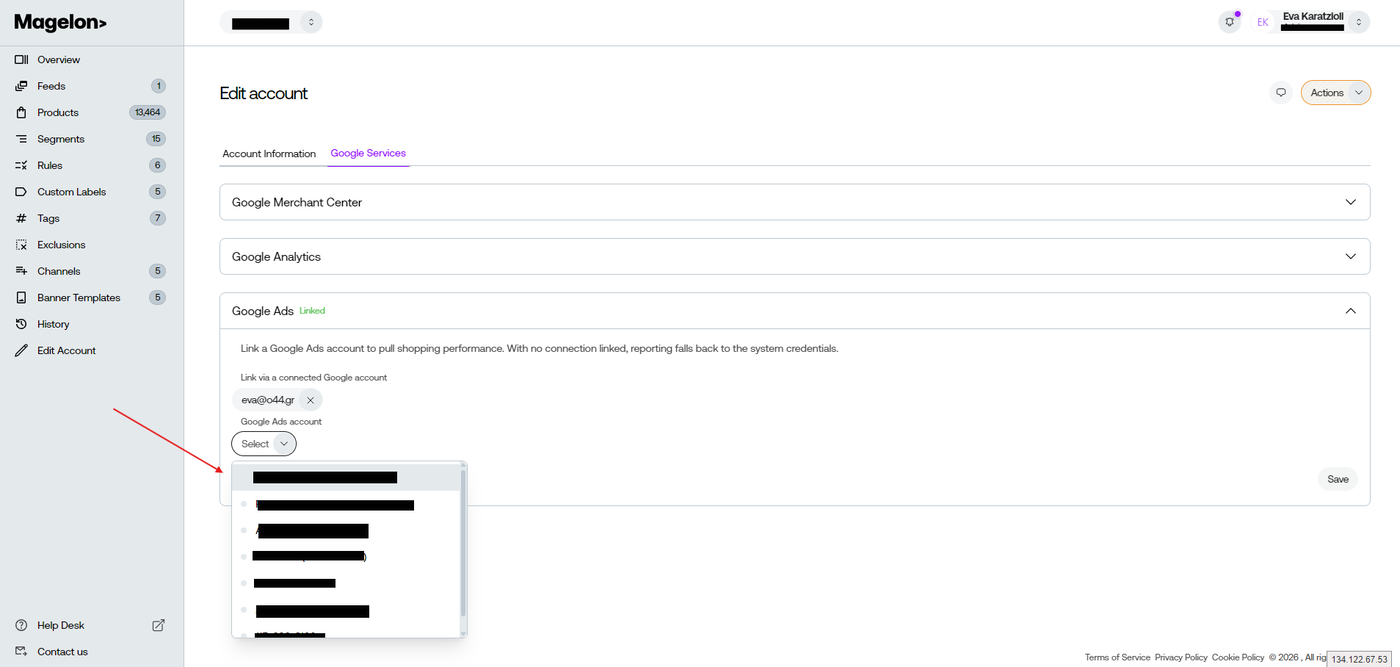
Click Save to save your changes.
If you need further assistance on how to do that, or you need help on which fields you need to map please contact to support@magelon.com